
- Go to the official FileZilla website https://filezilla-project.org/
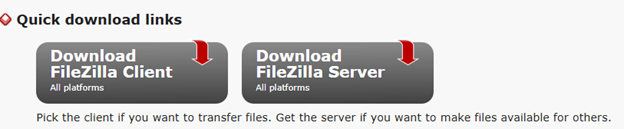
- Download the FileZilla Client using the quick download links
- Once downloaded, run the installer as administrator.
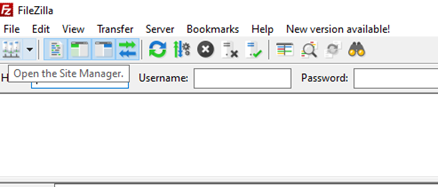
- Launch FileZilla and click on the site manager
- On the Site Manager dialog, Click on “New Site”
- On the left-hand pane, you can rename the site to any name that’s suitable
- On the right-hand pane, under the General tab fill in the fields as illustrated below:
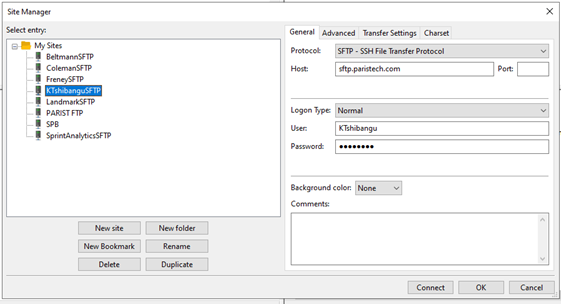
- Protocol: Select SFTP Protocol
- Host: sftp.paristech.com
- Logon Type: Can choose Normal or Anonymous
- User: Username
- Password: Password
- Once these fields are filled click "Connect"
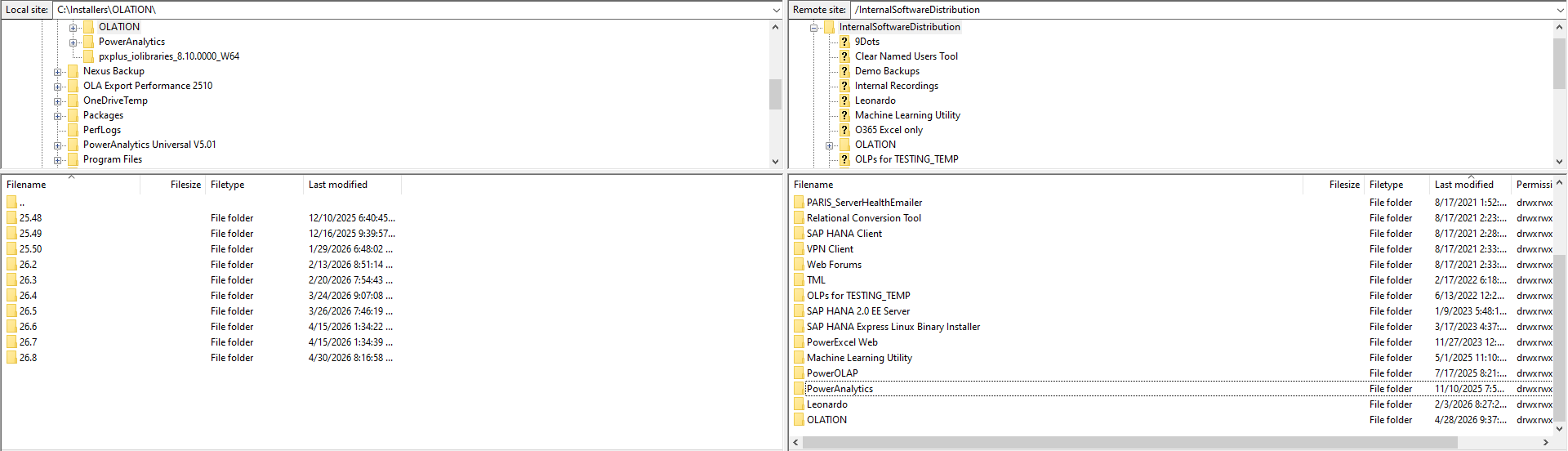
- Upon connecting to the sftp, you have access to your local files on the bottom left pane and sftp files and folders on the bottom right pane.
- To Upload to the SFTP site, simply drag the file from the bottom left pane to the bottom right pane.
- To download from the SFTP site, drag the file from the bottom right pane to the bottom left pane
HOW TO INSTALL FILEZILLA AND SET UP SFTP LOCALLY Print
Modified on: Fri, 8 May, 2026 at 5:03 AM
Did you find it helpful? Yes No
Send feedbackSorry we couldn't be helpful. Help us improve this article with your feedback.